Finding and downloading models
Get models lists the models wanna.sh can run, from Hugging Face, grouped by what they do: Chat, Pictures, Videos, Read aloud, Transcribe, Music & sound, and Document search (the small search models that power Knowledge).
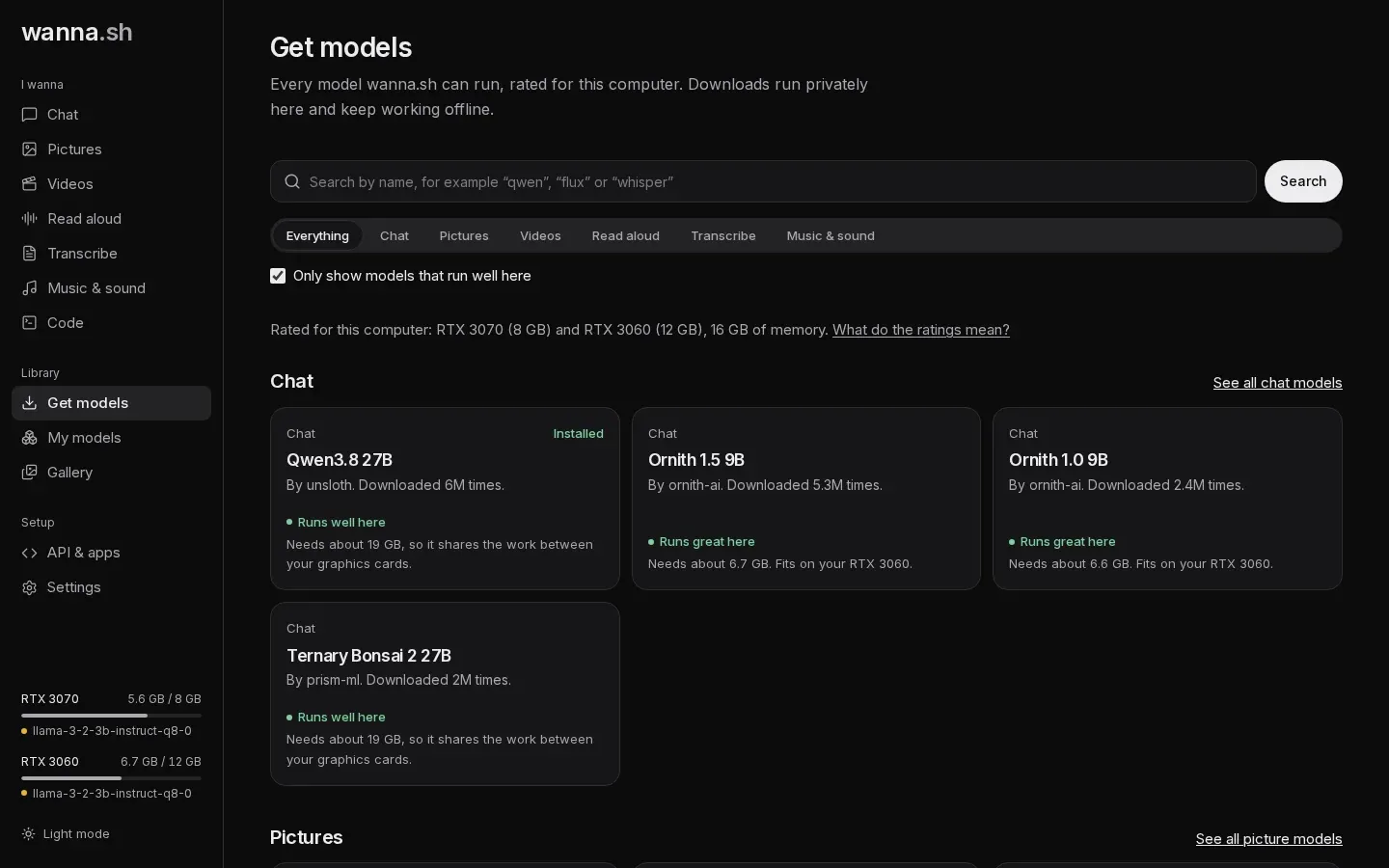
Finding a model
Section titled “Finding a model”- Pick a category, or Search by name, for example qwen, flux or whisper.
- Only show models that run well here hides models that would be slow or won’t fit. Untick it to see everything.
- Models marked Tested with wanna.sh have been run on real hardware with the app.
What the ratings mean
Section titled “What the ratings mean”Each model is rated against your computer’s graphics cards and memory:
| Rating | Meaning |
|---|---|
| Runs great here | Fits on one of your graphics cards. The fastest option. |
| Runs well here | Too big for one card, but fits when shared across your cards (chat, picture and video models). |
| Runs, but slowly | Part of it runs on the processor or streams from system memory. It works, but replies and results come slowly. |
| Too big for this computer | Needs more memory than you have. |
The rating says how much graphics memory the model needs while it runs, for example Needs about 9.3 GB of graphics memory to run. That’s more than its download size, because a model needs working room as well as its weights: a picture model that downloads as 6.9 GB needs about 9.3 GB to make 1024 px pictures. The download size is on the Download button. Ratings are worked out for your computer, so the same model can be rated differently on another one.
Choosing a version
Section titled “Choosing a version”Many models come in several versions (quantizations): the same model compressed by different amounts. When you open a model you’ll see Choose a version:
- Smaller versions download faster and use less memory.
- Bigger versions are a little smarter.
- Best for you marks the highest quality version that runs well on your computer. It’s selected for you.
Some chat models also say Can also look at pictures you attach. For those, wanna.sh downloads the extra file they need to see pictures.
Downloading
Section titled “Downloading”Press Download. Progress shows at the bottom of the sidebar and on the model’s page, and you can keep using the app meanwhile. wanna.sh downloads only the files the model needs.
- If you close wanna.sh or lose your connection, the download resumes where it left off next time.
- If a download stalls, it restarts itself.
Downloaded models appear in My models, and in the model menus on each page.
Models that need permission
Section titled “Models that need permission”Some models (such as FLUX.1 [dev] and some Llama and Gemma repositories) ask you to accept their licence on Hugging Face before downloading:
- Sign in at huggingface.co, open the model’s page and accept its terms.
- Create a read token at huggingface.co/settings/tokens.
- Paste it into Settings → Hugging Face account.
Removing models
Section titled “Removing models”Open My models, choose Options on a model and press Delete model to free up its disk space.