Build an app with Code
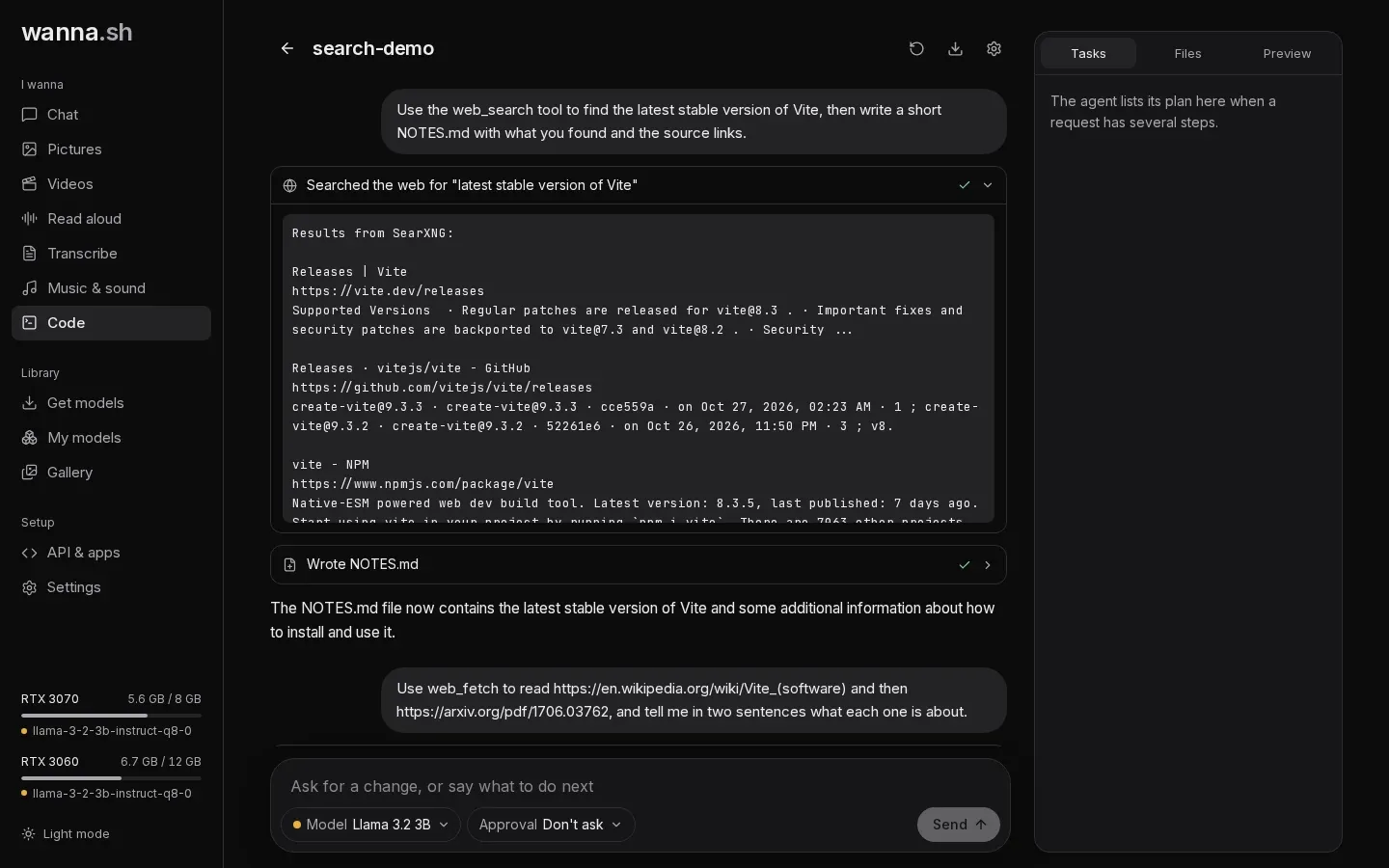
Code is a coding agent, similar in spirit to tools like Claude Code, that runs on your own chat model. Describe what you want to build and it plans the work, writes and edits files, runs commands, searches the web and starts servers you can preview.
Before you start
Section titled “Before you start”- Docker must be installed and running. The agent’s commands run inside a Docker container (the sandbox), never directly on your computer. See what the sandbox can reach.
- A chat model that can use tools. In the model menu, models are marked Can use tools or Can’t use tools. Bigger models do much better at coding: a 3B model can write a small file, while a model of 14B or more can build a multi-file app.
Create a project
Section titled “Create a project”- Open Code and press New project.
- Give it a Name, optionally say What it is (the agent sees this at the start of every request) and What do you want to build? (this becomes your first request).
- Press Create project.
Each project is a folder in ~/.wanna/projects/, which you can open in your own editor at any time. Download as zip
gives you a copy.
Watching it work
Section titled “Watching it work”Every step the agent takes appears as a card, such as Read index.html, Wrote game.js, Edited style.css (with a diff of the change), a command it ran, or Searched the web for “…”. Click a card to see the details. While the model is thinking, you can see what it’s considering.
The panels on the right show:
- Tasks: the agent’s plan for requests with several steps, ticked off as it goes.
- Files: the project’s files. Click one to read it.
- Preview: any web server the agent starts in the sandbox on port 3000, 5173, 8000 or 8080, shown live.
To let the agent use your own documents (a spec, an API reference, your conventions), press Knowledge under the message box and tick libraries. See Ask about your documents.
Send another message at any time to ask for changes. Stop halts the agent; New conversation starts a fresh conversation in the same project.
Approval
Section titled “Approval”Choose how much the agent may do on its own with Approval under the message box:
| Mode | What happens |
|---|---|
| Ask before commands | Reading and editing files happen right away; commands wait for you. The default. |
| Ask before any change | Edits and commands both wait for you. |
| Don’t ask | The agent works on its own, inside the sandbox. |
When something waits for you, press Allow, Deny, or Always allow this command to stop being asked about that exact command in this project.
The agent’s tools
Section titled “The agent’s tools”| Tool | What it does |
|---|---|
read_file, list_files, glob, grep |
Find and read files in the project. |
write_file, edit_file, multi_edit |
Create and change files. |
bash, bash_output, kill_shell |
Run commands in the sandbox, including long-running servers in the background. |
todo_write |
Keep the task list in the Tasks panel. |
web_search |
Search the web. |
web_fetch |
Read a web page or PDF, such as documentation. |
search_knowledge |
Search the Knowledge libraries you gave the project. Only offered when the project has some. |
What the sandbox can reach
Section titled “What the sandbox can reach”The sandbox is a Docker container that only sees its project folder. Commands run as your own user ID, with no administrator rights, so files the agent creates belong to you.
| The internet | Yes, so the agent can install packages and read documentation. |
Its own servers (localhost inside the sandbox) |
Yes. |
| Your computer (including wanna.sh itself and anything else running on it) | No. |
| Your local network (router, printers, other computers, NAS) | No. |
Cloud metadata addresses (169.254.169.254) |
No. |
| Other files on your computer | No, only the project folder. |
A small firewall inside each sandbox blocks your computer, your local network (all private addresses) and link-local addresses. It’s set up from outside the sandbox, which itself has no permission to change network settings, so nothing the agent runs can turn it off. If the firewall can’t be set up, the sandbox doesn’t start.
Each sandbox is also limited to 4 GB of memory, 4 processor cores and 512 processes.
For the full picture, including what Docker access means, see Security.
The first time you use Code, wanna.sh builds the sandbox image (Node.js 24, Python 3, git and common tools), which takes a few minutes.
Web search
Section titled “Web search”Searches go through a private SearXNG search engine that wanna.sh runs in Docker on your computer, so no account or key is needed. If you have a Brave Search API key, add it in Settings → Web search for Code and it’s used first.
web_fetch can’t open addresses on your own computer or local network, except the project’s own preview ports. That
way the agent can check the app it built, but not reach wanna.sh itself or other devices at home.
Memory and long tasks
Section titled “Memory and long tasks”How much the agent can keep in mind is set by Memory for coding in the project settings. Automatic chooses the most that fits on your graphics cards. On long tasks, older tool output is shortened to fit, and you’ll see a note when that happens. Give the agent a What it is description and it keeps your goals in view.