Make pictures
Pictures turns a description into an image. You need a picture model first: open Get models → Pictures. Stable Diffusion 1.5 is small and quick; Stable Diffusion XL gives better results if your graphics card has 8 GB or more.
If you installed the Windows app or a chat-only install, the first visit to Pictures (or Videos, Read aloud, Transcribe or Music) shows One more step: picture, video, voice and music support. Press Install for a one-time download of the AI libraries, about 3 GB, matched to your graphics card. You can keep chatting meanwhile.
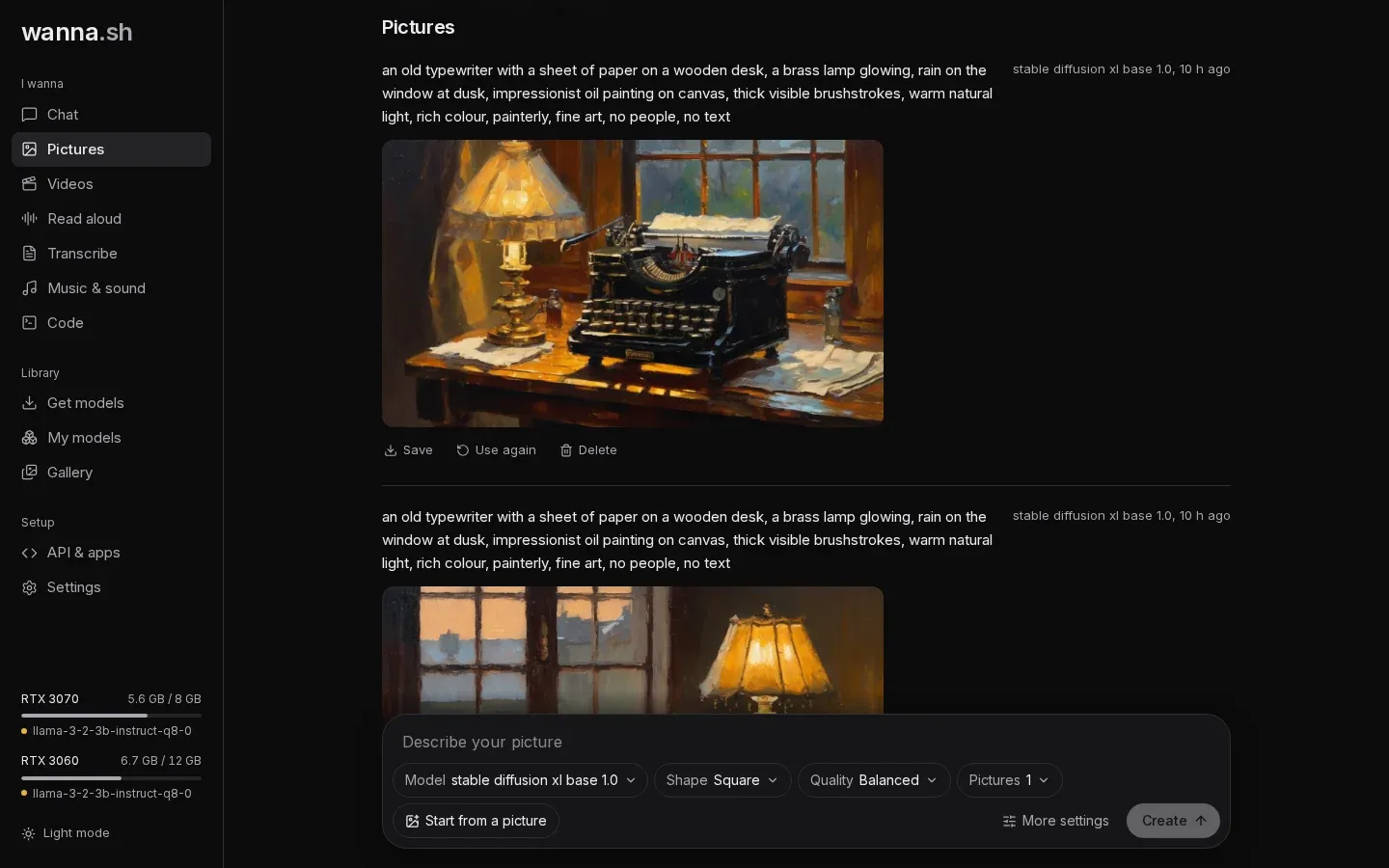
Describe your picture
Section titled “Describe your picture”Type what you want to see and press Create. Be specific about the subject, the setting, the style and the light, for example:
an old typewriter on a wooden desk, a brass lamp glowing, rain on the window at dusk, impressionist oil painting
The model starts by itself the first time, then the picture appears above the prompt bar with a progress bar.
Options
Section titled “Options”| Option | What it does |
|---|---|
| Model | Which picture model to use. |
| Shape | Square, Wide or Tall. Sizes are chosen to suit each model. |
| Quality | Quick, Balanced or Best. Better quality takes more steps, so it’s slower. |
| Pictures | How many to make at once. |
| Start from a picture | Restyle one of your own pictures. Prompt strength sets how far it can move from the original: low keeps it close, high changes more. |
Under More settings:
| Setting | What it does |
|---|---|
| Things to avoid | What you don’t want, for example blurry, extra fingers, text. |
| Steps | How many refinement steps to run. Leave empty to follow Quality. |
| Sampler | How the picture is drawn step by step. Automatic works well for most pictures. |
| Seed | The same seed and description give the same picture. Leave it on Random for variety. |
After it’s made
Section titled “After it’s made”- Save downloads the picture.
- Use again puts the same description and settings back in the prompt bar, so you can try a variation.
- Delete removes it.
Everything you make is also kept in the Gallery, and in the outputs folder of your
data folder.